Getting Started with the Industrial PRO HubSpot Theme
Eight steps from installing the theme to a finished site: plan, set up navigation, build pages, and fill them with content.
Step 1
Do you currently have a HubSpot site or blog, and you want to rebrand? Or is this a new site?
If you are rebranding, you will need to make updates without impacting your current site. Read HubSpot's content staging guide.
If this is a new site, you can move on to step 2.
Step 2
Are you new to using HubSpot themes? If so, review these educational resources before customizing the theme.
- The HubSpot CMS for Marketers (course)
- How to edit content and layout in drag and drop templates (article)
- How to create a website using a HubSpot theme (article)
- Learn about Growth-Driven Design (video)
Some common questions
- Industrial PRO HubSpot Theme FAQ and Tutorials
- Do you want to create a page layout and start adding images and text? (video)
- Do you want to adjust the global theme styles, and change colors and fonts? (article)
- Do you want to change or create a child theme so you can edit the template code to build new functionality? (article)
Step 3
Plan your site architecture. How should your top navigation menu look? What about the footer navigation? Once you have this ready, update your default menu or create a new one.
Create your navigation menu. Read HubSpot's guide.
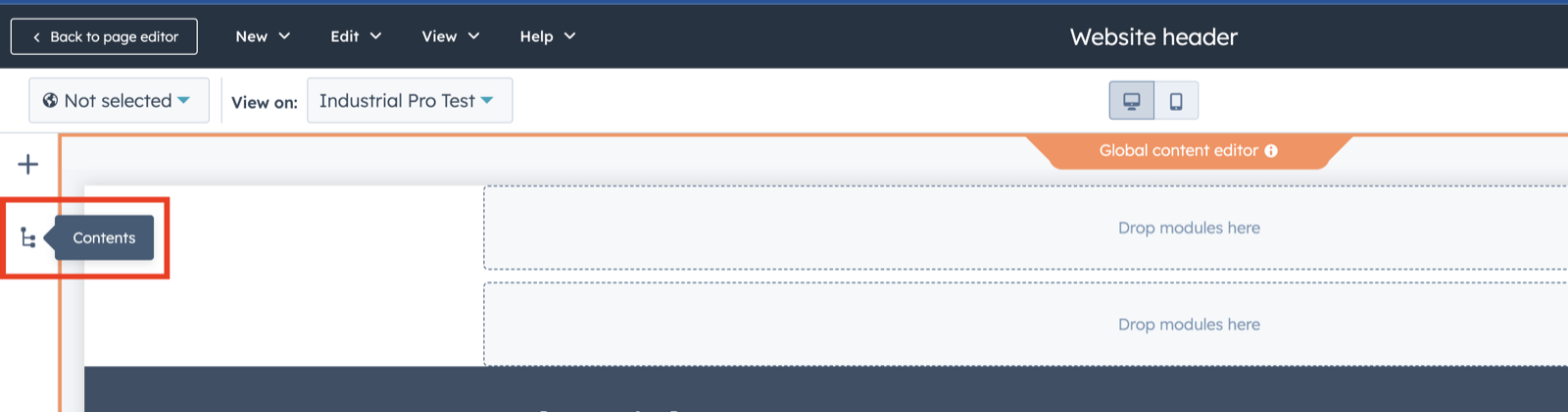
Then edit the global header (guide) and select your menu.
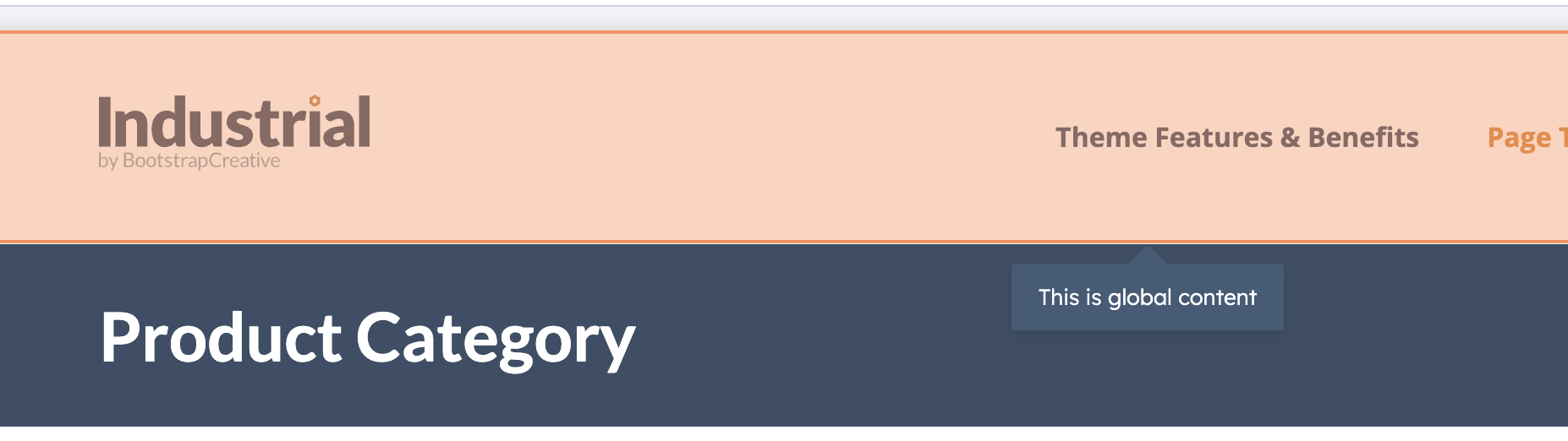
When editing a page, hover over the header and click it when it turns orange. Then click the Edit global content button.
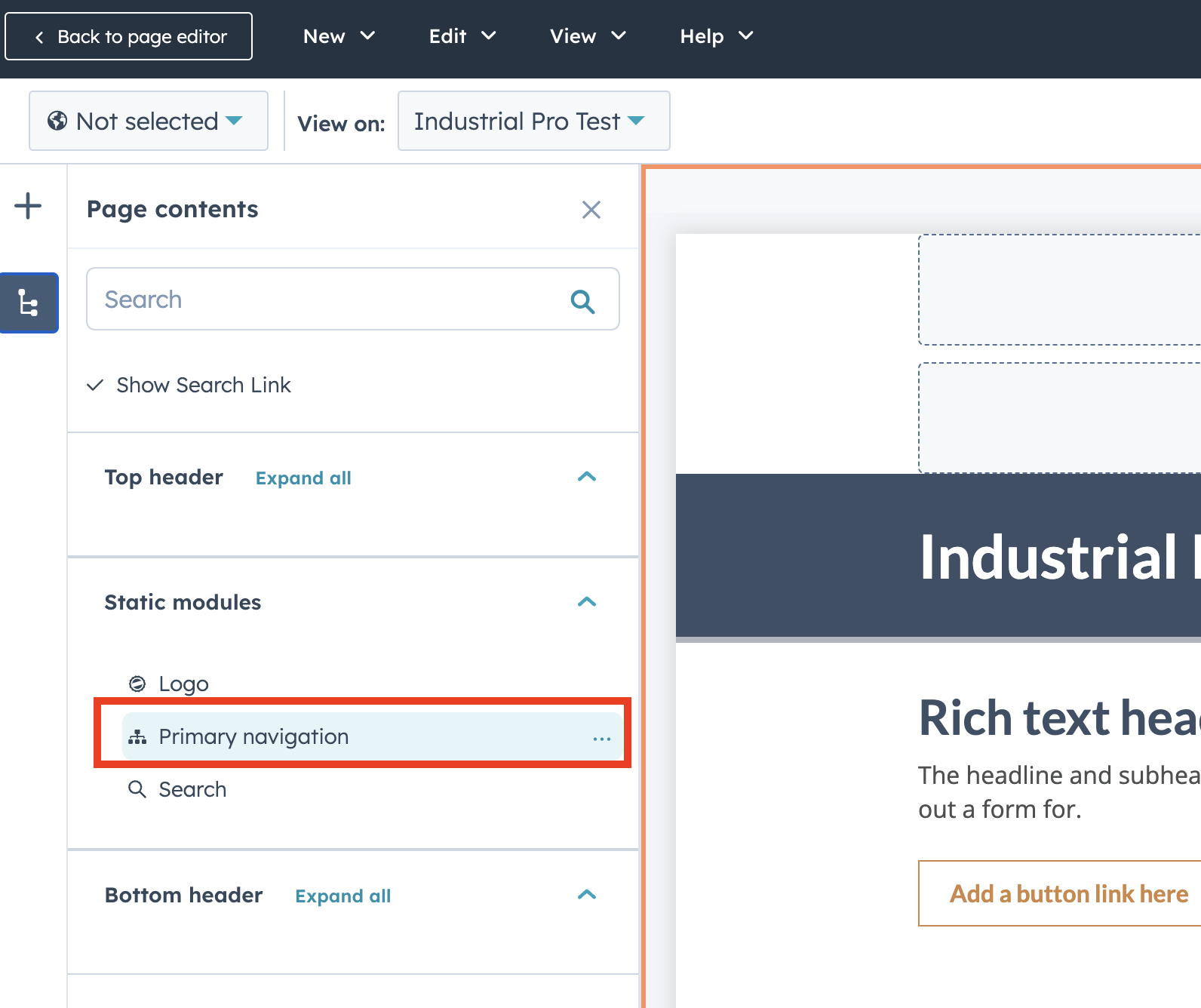
Click Primary Navigation and select your menu.
Step 4
Begin building your pages using the provided templates.
Step 5
Go to the theme settings panel and click the header to open the global partial editor screen. Select your new menu from the dropdown list, then update colors, fonts, and anything else you would like to change in the theme.
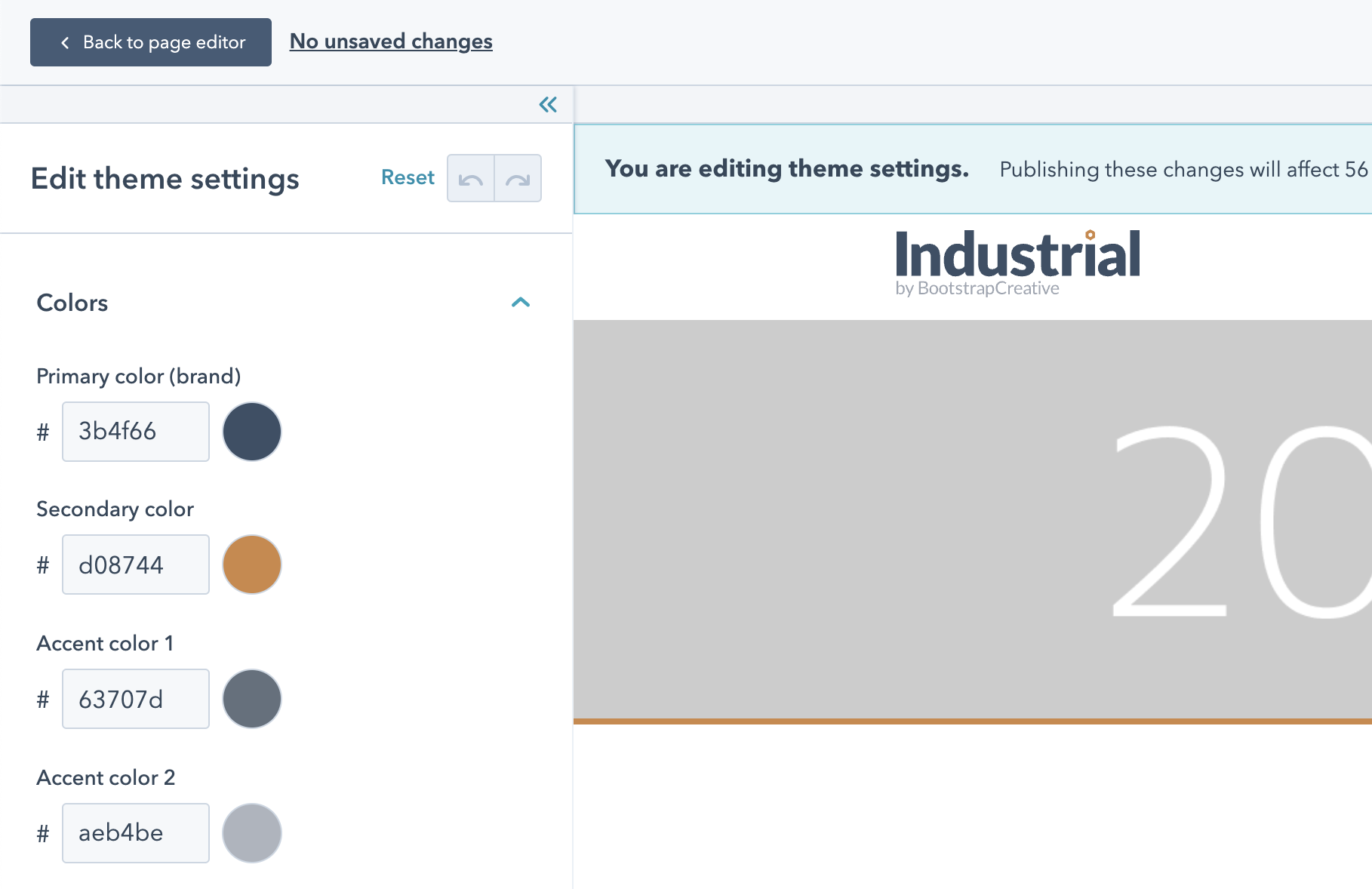
Step 6
Navigate your site and begin sketching on paper what content and images you need for each page. Paper is quicker than a screen for working through layout issues. Once that is done, edit the pages and enter your text first.
You can use placeholder images for now so you can visualize your page layout. Once things are looking good, source images for your design. Here are some sources for free photos and royalty-free images.
Canva image templates

Each link below opens a new blank Canva design at the exact pixel size the theme uses. It works with a free Canva account. Add your photo, text, or brand colors, then download it as a JPG or PNG and upload it to HubSpot.
| Image | Size (px) | Canva |
|---|---|---|
| Hero Mobile | 600 × 400 | Create design |
| Hero Desktop | 1920 × 400 | Create design |
| Hero Desktop – parallax | 2000 × 1000 | Create design |
| 16:9 images | 640 × 360 | Create design |
| 4:3 images | 600 × 450 | Create design |
| Landing Page Background Image | 1500 × 900 | Create design |
| CTA Image Button | 1500 × 500 | Create design |
| Blog Post Background | 2000 × 400 | Create design |
Tip: Not using Canva? Use the sizes above in any image editor, such as Photoshop, Figma, or Adobe Express.
Step 7
Update your blog templates from the theme. Read HubSpot's guide.
Step 8
Review the frequently asked questions for additional help with common questions: Industrial PRO HubSpot Theme FAQ and Tutorials.
What to read next
Module reference
What each of the theme's modules does, with every field explained.
Quote Cart
Let visitors build a quote list and submit it in one form.
Homepage Templates
Seven homepage layouts for different kinds of industrial business.
Change log
View the theme change log on the HubSpot marketplace.
Have a question or support request?
Contact us or email [email protected].